Mastering the rsync Command in Linux: The Ultimate Guide to File Synchronization, Backups, and Remote Transfers
Master the rsync command in Linux with this ultimate beginner-to-pro guide. Learn syntax, all key options, 13+ practical use cases with code examples for local/remote sync, mirroring, incremental backups, and automation.
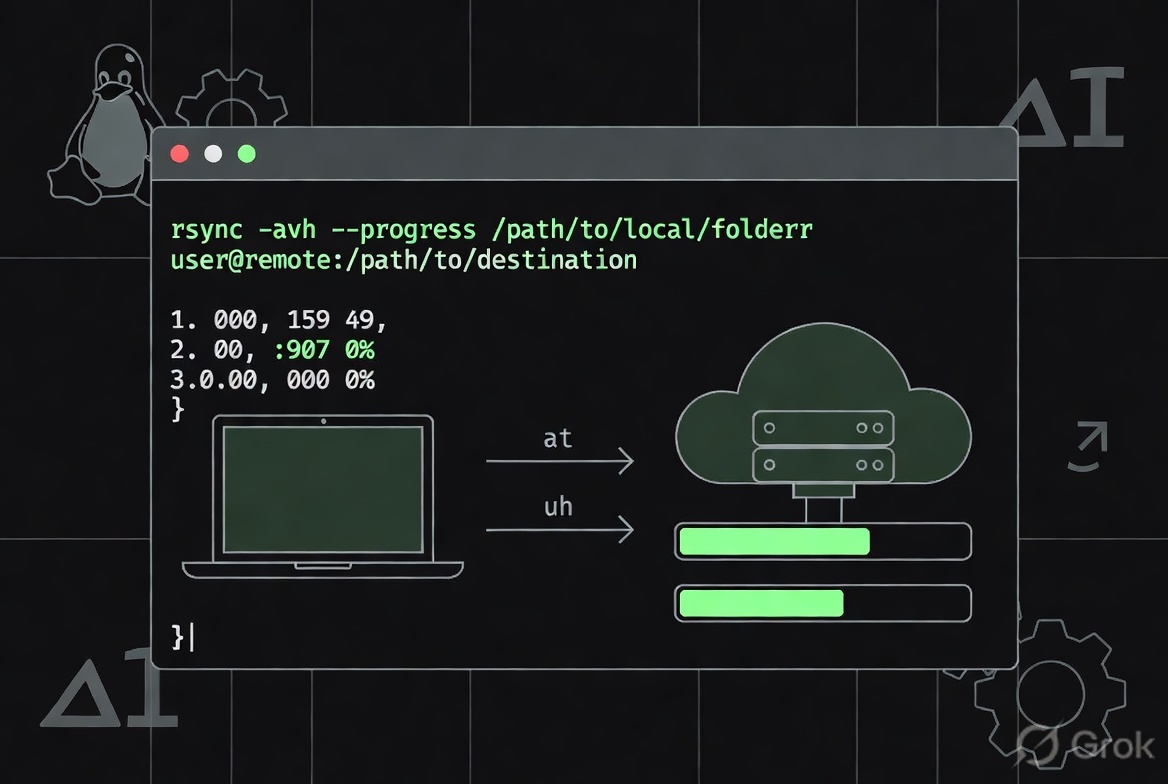
Hey there, fellow developers, sysadmins, and Linux enthusiasts!
I’m a senior developer who’s been in the trenches for over 15 years—migrating massive production servers, setting up automated daily backups for petabyte-scale media libraries, deploying static websites across continents, and debugging why a simple cp command ate up an entire weekend on a slow network.
rsync is one of those tools that quietly saves your bacon every single time. It’s not just “copy on steroids.” It’s a smart, efficient file synchronization utility that only transfers the differences between source and destination (thanks to its clever delta-transfer algorithm). This makes it lightning-fast compared to cp, scp, or tar over SSH for anything beyond tiny changes.
In this long-form guide I’ve documented everything on the go, exactly the way I wish I had when I first learned it. We’ll go from absolute beginner (“what even is this command?”) to professional-level mastery (incremental snapshots, automation, gotchas, and production best practices). Every use case comes with clean, copy-paste-ready examples and plain-English explanations of why it works and when you’d use it.
1. What is rsync and Why Should You Care?
- Core magic: rsync compares files using quick checks (size + timestamp) by default, or checksums if you ask. It then sends only the changed blocks (delta-transfer).
- Compared to alternatives:
cpormv: Dumb full copy, no network smarts, no resume.scp: Full re-transfer every time, no delta.tar | ssh: Works but slower and no easy mirroring.
- Real-world wins: Server migrations, website deploys, photo/video backups, CI/CD artifact sync, disaster recovery.
2. Installation (It’s Probably Already There)
Most modern distros ship with it. Check it first:
rsync --version
Install if missing:
# Debian/Ubuntu
sudo apt update && sudo apt install rsync

# Fedora/RHEL/CentOS/Rocky
sudo dnf install rsync

# Arch
sudo pacman -S rsync
3. Basic Syntax & The Trailing Slash Gotcha (This One Bites Everyone)
rsync [OPTIONS] SOURCE DEST
Critical rule (memorize this or you’ll hate life):
rsync /path/to/source/ /path/to/dest/→ copies contents of source into dest.rsync /path/to/source /path/to/dest/→ copies the folder itself into dest.
Example:
rsync -av /home/user/projects/ /backup/projects/     # contents only
rsync -av /home/user/projects /backup/               # whole "projects" folder
4. Must-Know Options (Explained Like You’re Pair-Programming With Me)
I always start with these:
| Option | What it does (simple terms) | When to use it |
|---|---|---|
-a (archive) |
Recursive + preserves permissions, times, owner, group, symlinks, etc. (the MVP flag) | Almost every sync |
-v (verbose) |
Shows what’s happening | Learning & debugging |
-z (compress) |
Compresses data on the wire | Slow networks / internet |
-h (human-readable) |
Shows sizes in KB/MB/GB | Readability |
-P |
--progress + --partial (resume interrupted transfers) |
Large files over flaky connections |
--delete |
Deletes files in destination that no longer exist in source (true mirror) | Backups, deployments |
-n / --dry-run |
Shows what would happen, no actual changes | ALWAYS test first! |
--exclude=PATTERN |
Skip files matching pattern | Ignore logs, caches |
--bwlimit=KBPS |
Limit bandwidth (great for not killing your network) | Shared production servers |
-u / --update |
Skip files that are newer in destination | Safe “don’t overwrite newer” |
--stats |
Show transfer statistics at the end | Production scripts |
Pro combo I use 90 % of the time: -avzhP
5. All Practical Use Cases with Real Sample Code
Use Case 1: Basic Local Directory Sync (Beginner)
rsync -avzh /home/user/documents/ /backup/documents/
Copies everything while preserving everything important. Safe starting point.
Use Case 2: Dry-Run – Never Shoot First
rsync -avzh --dry-run /home/user/documents/ /backup/documents/
Always run this first. I still do it even after 15 years.
Use Case 3: Mirror a Directory (True Backup)
rsync -avzh --delete /home/user/projects/ /backup/projects/
Deletes anything in backup that you removed from projects. Perfect mirror.
Use Case 4: Remote Sync Over SSH – Push to Server
rsync -avzhP -e "ssh -p 2222" /var/www/myapp/ [email protected]:/var/www/myapp/
Pushes website to production server (custom SSH port shown).
Use Case 5: Remote Pull (Fetch from Server)
rsync -avzhP [email protected]:/var/log/app.log /local/logs/
Use Case 6: Exclude Files & Directories (Super Common)
rsync -avzh --exclude='*.log' --exclude='node_modules/' --exclude='cache/' /project/ /backup/project/
Or use a file for complex rules:
rsync -avzh --exclude-from=exclude.txt /project/ /backup/
Use Case 7: Include Only Specific Files (Reverse Logic)
rsync -avzh --include="*.jpg" --include="*.png" --exclude="*" /photos/ /backup/photos/
Use Case 8: Bandwidth Limiting (Don’t Kill Shared Servers)
rsync -avzh --bwlimit=5000 /large/video/ user@server:/backup/
Limits to ~5 MB/s.
Use Case 9: Incremental Backups with Hard Links (Pro-Level Snapshots) This is gold for daily backups without eating disk space:
DATE=$(date +%Y-%m-%d)
rsync -avzh --delete --link-dest=/backup/latest /important-data/ /backup/$DATE/
ln -sfn /backup/$DATE /backup/latest
Each day only stores changes but every snapshot looks complete.
Use Case 10: Delete Source Files After Successful Transfer (Safe mv)
rsync -avzh --remove-source-files /local/staging/ user@server:/production/
Use Case 11: Resume Large Transfers
Just add -P and it picks up where it left off if the connection drops.
Use Case 12: Compress + Progress for Internet Transfers
rsync -avzhP [email protected]:/home/data/ /new-server/data/
Use Case 13: Automated Cron Backup (Production Ready)
# /etc/cron.daily/backup-rsync
#!/bin/bash
rsync -avzh --delete --log-file=/var/log/rsync-backup.log /data/ /backup/server/
Make executable and drop in cron.
6. Advanced Tips & Options
--checksum/-c: Use checksum instead of timestamp+size (slower but 100 % accurate across filesystems).--info=progress2: Nicer progress on newer rsync versions.- ACLs & xattrs: Add
--acls --xattrs(or-X). - Hard links:
--hard-links. - Daemon mode (rsync://) for non-SSH servers (less common now).
7. Common Pitfalls & Troubleshooting (I’ve Hit Every Single One)
- Trailing slash mistake → wrong folder structure.
- Permissions → run with
sudoonly when needed; better to use SSH keys + same user. - SSH key not set up → add
-e "ssh -i ~/.ssh/id_rsa". --deletewent nuclear → always dry-run first!- Spaces in filenames → quote paths or use
--files-from. - Slow performance → try
-zonly on slow links; disable on LAN. - Partial files left behind →
-Pfixes it.
Log everything in production: --log-file=/var/log/rsync.log
8. Best Practices I Live By
- Always dry-run first (
-n). - Test on small subset before big jobs.
- Use SSH keys, never passwords in scripts.
- Monitor disk space before sync.
- Version your exclude lists in git.
- Combine with
nice/ionicefor background jobs. - For critical data, add
--checksum.
Conclusion
rsync is the Swiss Army knife of file management in Linux. Once you master the options and the trailing-slash rule, you’ll wonder how you ever lived without it. It scales from one-off copies to enterprise-grade automated backups.
Start small, experiment in a safe directory, and you’ll be a rsync ninja in no time.
Happy syncing!